Show the mobile UI. Explain the change.
Testing an app on your phone? Send a screenshot and a short change request straight to your desktop AI. As natural as explaining it to a colleague.
See how it worksTalk to your desktop AI tools from your phone, with speech recognition that understands you better, a familiar way to communicate, and a more private setting.

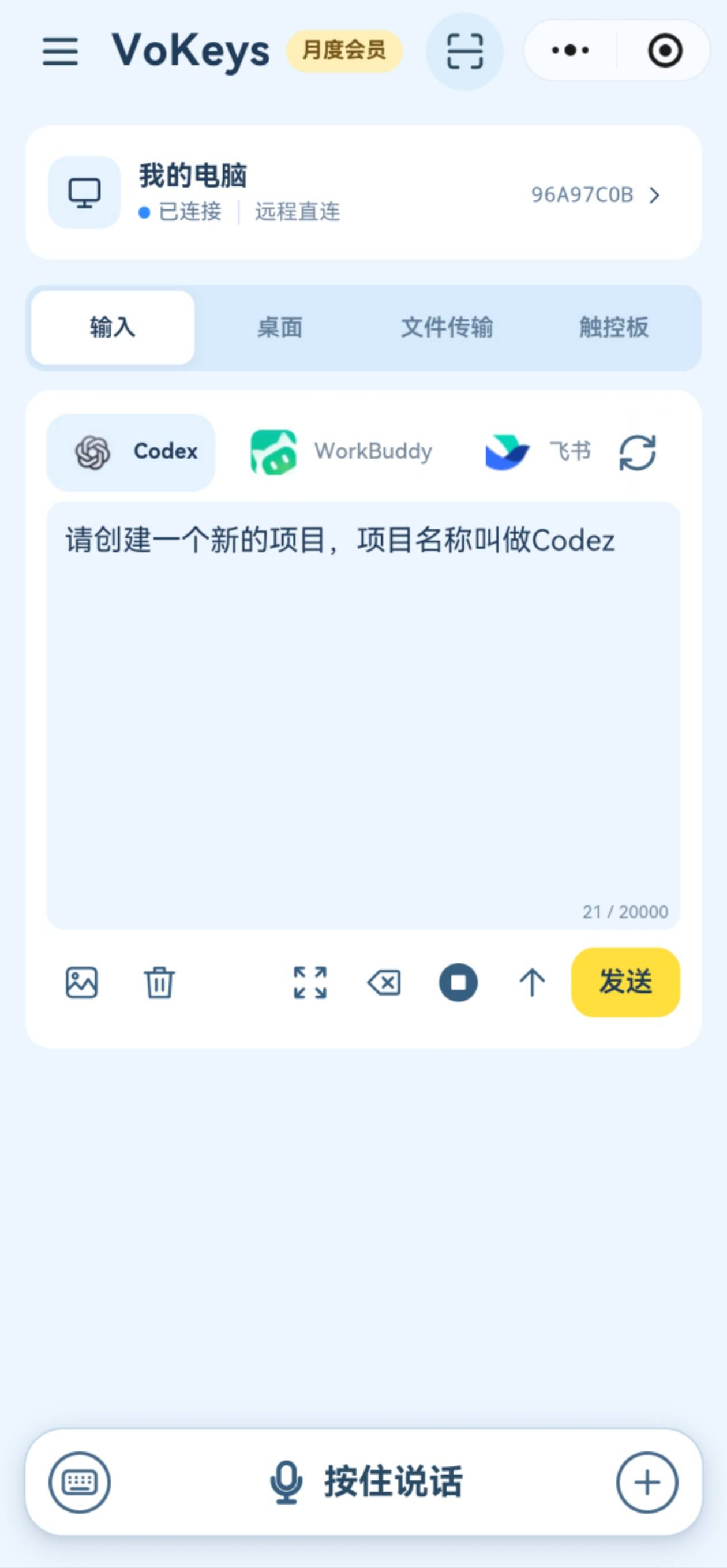
 Codex
 Cursor
 Claude
 WorkBuddy
 Doubao
 PPT
 Word
 Excel
 PowerShell
Enter text in any application with an editable input. Click the target input on your computer, then select “Current app” on your phone.
Testing an app on your phone? Send a screenshot and a short change request straight to your desktop AI. As natural as explaining it to a colleague.
See how it worksAt shared desks, voices can interfere when everyone talks to their computer. Typing a long explanation takes time, too. Hold your phone close and dictate quietly to send ideas to AI with less disruption.
See how it worksCheck an AI reply on a coffee break or between meetings, add context and send the next task from your phone. Keep the work moving.
See how it worksChoose Codex, Cursor, Claude or WorkBuddy for the task at hand. Switch your input target on your phone and keep the conversation moving.
See how it worksDoes this sound familiar? At shared desks, talking to your computer can disturb coworkers, and nearby voices can get picked up together. Switching to typing means spending time writing out a long thought.
Hold your phone close, dictate quietly, and send the thought to your desktop AI. Reduce disruption to coworkers and spend less time typing long explanations.

A cramped button or awkward layout on your phone? Send a screenshot and a short change request to your desktop tool. Get your point across in one step.
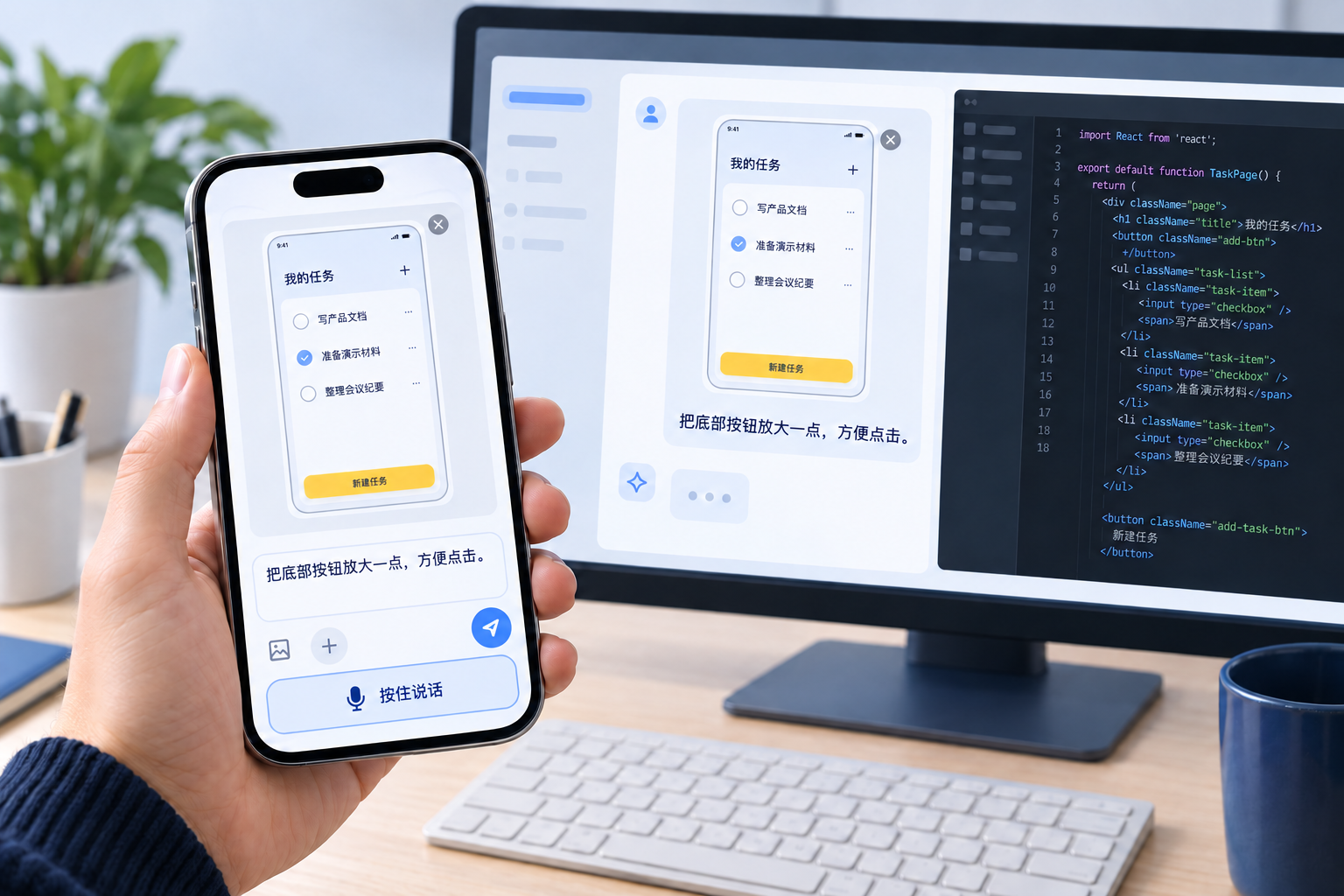
Recorded workflow · Phone input → Desktop response → Phone view
Explain a complex request using familiar phone dictation. Show an interface issue with a screenshot and a short note sent directly to your desktop tool. Spend less time typing and forwarding, and more time reviewing results, making decisions and moving work forward.
Start for freeVoKeys turns your phone into an input companion for desktop AI. Send voice-transcribed text, screenshots and files to Codex, Cursor, Claude and WorkBuddy, switch input targets, and view or control your desktop locally or remotely.
Supported tools include Codex, Cursor, Claude, WorkBuddy, Doubao, Feishu, PPT, Word, Excel and PowerShell. You can also click any editable input on your computer and select “Current app” on your phone. Their subscriptions are separate; see Help for compatibility and permission requirements.
Yes. The free plan includes text and voice input, image and file transfer, touchpad, and desktop viewing and control over a local connection.
Yes. Keep the desktop assistant running and use a local connection on the same Wi-Fi. When you cannot join the same Wi-Fi, enable remote access and keep both devices online to continue the conversation and send materials.
Yes. Your phone provides familiar voice, text and image input, and the desktop assistant delivers it into your desktop tool.